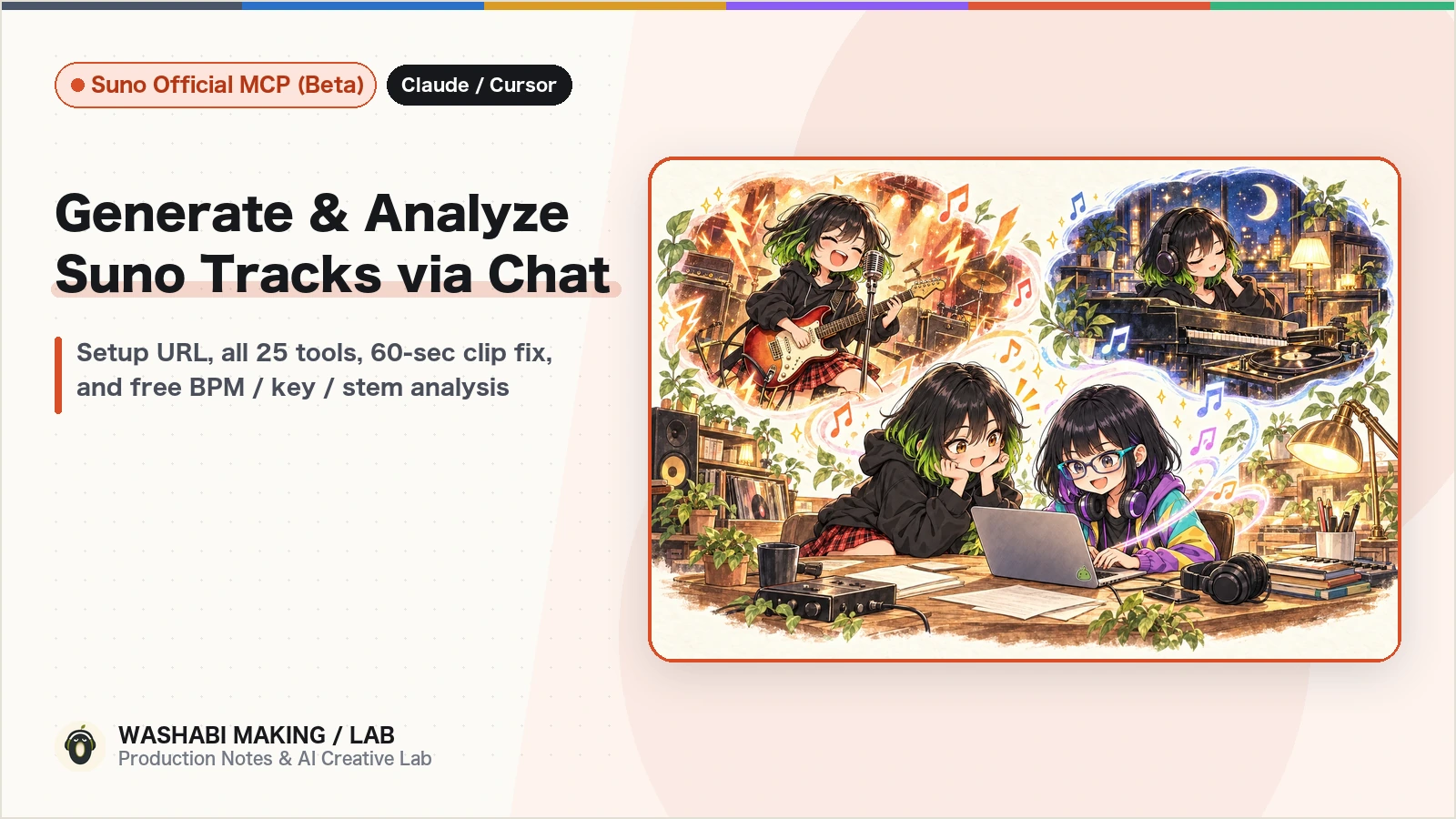
Hi, I'm Rey! I produce a 6-piece virtual rock band called WASHABI using a hybrid human + AI workflow. We release a new 1-minute song and music video every Friday.
On October 28, 2026, Suno officially announced the Suno MCP (Beta).
MCP (Model Context Protocol) is an open standard that lets AI assistants—such as Claude, ChatGPT, Cursor, and Antigravity—directly interact with external tools and services. By connecting Suno MCP, you can generate tracks, create cover arrangements, and analyze audio directly from your AI chat interface without ever opening the Suno web app in your browser.

I signed up for the Early Access waitlist right away, got approved today (October 30), and put all the core features through their paces!
First, take a listen to the "~60-second J-Rock original" generated purely from a chat prompt, alongside the "Lo-fi cover version" arranged right in the same chat thread:
In this post, I'll walk through how to connect Suno MCP, the initial setup pitfalls to watch out for, and the standout features we discovered during testing.
*Note: All screenshots and examples reflect the Beta version as of October 30, 2026, tested on a Suno Premier plan account (10,000 credits/month).*
- Suno Basics: Suno Beginner's Guide: Custom Voices, Covers & Vocal Direction (JP)
- Suno Cover Experiment (EN): Suno Cover 16-Style Comparison: What Changes, What Stays & How to Isolate Acoustic Guitar
- AI Agents for Creators: Intro to Claude Code, Codex & Antigravity for Creative Projects (JP)
What is MCP, and How Does It Change Songwriting?
Before diving into the setup, here is a quick overview if you're new to the term MCP.
MCP (Model Context Protocol) is essentially a "universal USB-C port for connecting AI assistants to external services." Introduced by Anthropic (the creators of Claude), it is now widely supported across Claude, ChatGPT, Cursor, Antigravity, and other agentic tools.
Previously, co-writing songs with an AI assistant and Suno required constant copy-pasting between two windows:
- The Old Workflow (Back-and-Forth Copy-Pasting)
1. Brainstorm lyrics and Style prompts in your AI chat window
2. Open Suno in your browser and paste the lyrics and Style prompt into the form
3. Listen to the generated tracks, then go back to the chat window to tweak the prompt
- The Suno MCP Workflow (All-in-One Chat)
1. Tell your AI in chat: *"Generate a 60-second rock song with these lyrics using our usual vocal (Roku_3)."*
2. The AI calls Suno directly via MCP and generates the track
3. Continue the conversation naturally: *"Make a Lo-fi cover of Take 2,"* or *"Get the exact BPM and lyric timestamps for our music video."*
Unlike traditional APIs that require developer API keys and custom scripts, the official Suno MCP connects simply by signing in with your regular Suno account, giving your AI immediate access to your plan's credit balance, saved Voices (personas), and workspaces.
1. Step 1: How to Connect & First Pitfalls
Let's connect Suno MCP to an AI client.
The official MCP endpoint URL is https://api.suno.com/mcp. You don't need to generate an API key—authentication is handled via standard OAuth sign-in with your Suno account.
Add It via "Custom Connector" (Not Listed in the Standard Directory Yet)
At first, I typed suno into Claude's connector search bar, but nothing showed up.
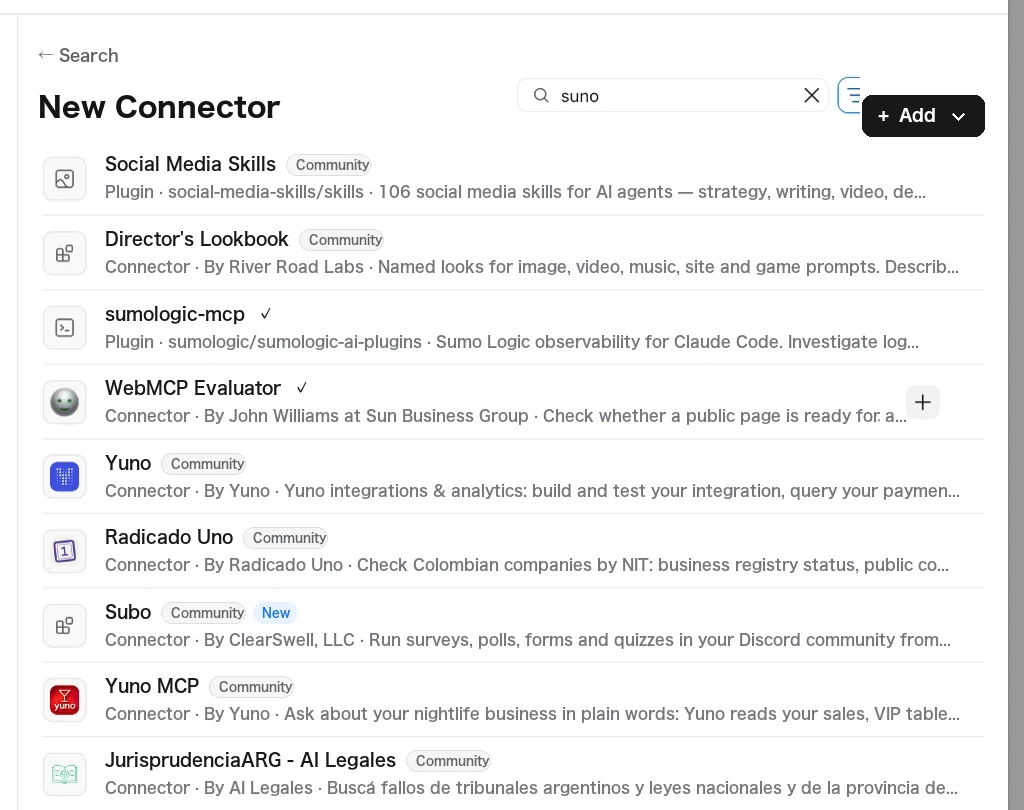
Because it is still in Beta, it isn't listed in the default public directory yet. Click the black "+ Add" button in the top right, choose "Add Custom Connector", and enter the endpoint URL directly:
- Name:
Suno - URL:
https://api.suno.com/mcp
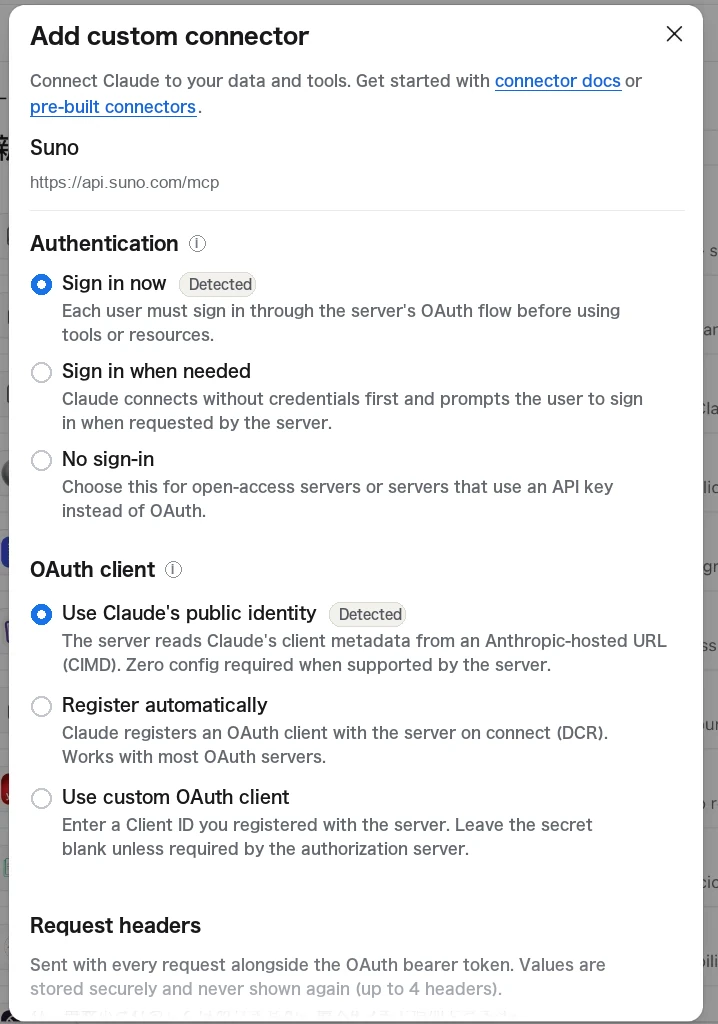
Once you enter the URL, the authentication flow (Sign in now) is detected automatically. Click add and proceed to the Suno sign-in screen.
If you use a terminal-based CLI agent like Claude Code, you can register it with a single command:
claude mcp add -s user --transport http suno https://api.suno.com/mcpBefore Waitlist Approval, You Will See an Account Linking Error
When I tried signing in right after adding the connector, I hit this error message:
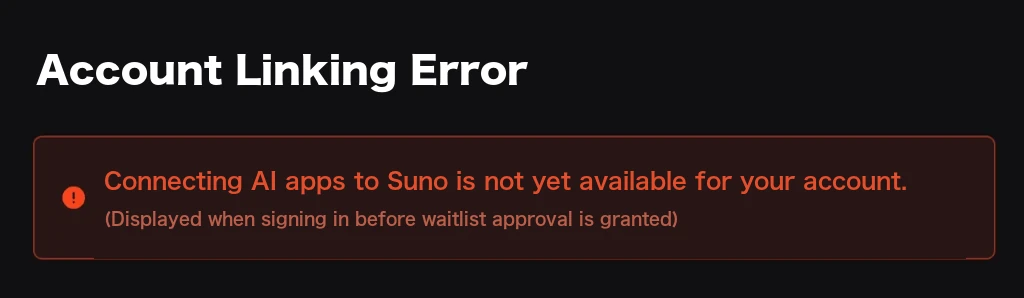
Your account is not yet eligible to link AI apps with Suno.
Suno MCP is currently rolling out in waves, so you need to submit the official Early Access form first.
I submitted the form on the morning of October 30, and by that same evening my account was activated—signing in with the exact same setup worked seamlessly! You can set up the connector ahead of time and simply sign in once your waitlist access clears.
2. Step 2: What Can Suno MCP Do? (All 32 Tools & Credit Rules)
Once connected, I inspected the available MCP tools. There are 32 tools in total, which fall into five main categories:
1. Create Songs & Speech
- audio-create (Custom or prompt-based song generation)
- speech-create (Spoken dialogue and narration generation)
2. Arrange & Extend Existing Tracks
- audio-covers-create (Cover generation with new style or voice)
- audio-extensions-create / audio-full-song (Extend from a specific timestamp and stitch into a full song)
- audio-mashups-create (Blend two songs into a mashup)
3. Upload Local Audio
- audio-upload-create / audio-upload-complete (Upload voice memos, guitar riffs, or DAW demos to Suno)
4. Analyze Tracks (Zero Credits Used)
- audio-analysis (Extracts BPM, musical key, time signature, beat/bar timestamps, structural sections, and AI audio tags)
- audio-lyrics-alignment (Extracts character- and word-level vocal timestamps)
5. Organize, Edit & Download
- workspaces-list / workspaces-create / workspaces-update-clips (List, create, and move clips between workspaces)
- library-search / library-list / playlists-* (Search your library and manage playlists)
- voices-list (List your saved Voices / personas)
- audio-edit (Rename song titles or update lyric text)
- audio-download (Generate MP3 / WAV download URLs)
- account-me / account-usage (Check account tier, remaining credits, and available models)
Which Actions Consume Credits (and Which Are Free)?
Checking account-usage revealed a very clean credit policy:
- Uses Credits: Generating new songs, covers, extensions, mashups, and speech (uses your normal Suno plan credits; each generation produces 2 takes as usual).
- Free (0 Credits, Unlimited): Uploading audio, searching your library, organizing workspaces/playlists, editing titles/lyrics, and running audio analysis (
audio-analysis/audio-lyrics-alignment). - Uses Monthly Download Quota: Exporting MP3/WAV files via
audio-downloadcounts toward your plan's monthly download limit (and always prompts for explicit confirmation first so the AI never burns your quota behind your back).
3. Step 3: Generating a New Song with Custom Voice, 60s Target & Sliders
Next, let's generate a track directly from chat.
First, I asked the AI to call workspaces-create to make a dedicated 999_mcp_test workspace. By passing that workspace ID when creating songs, every test track is neatly filed into that folder from the start.
Then, we called voices-list to fetch my saved vocal personas and selected Roku_3, the voice of WASHABI's female vocalist Roku.
Full Control Over Every Custom Mode Parameter
audio-create isn't limited to simple one-line prompts—it exposes every advanced setting available in Suno's web Custom Mode:
- model: v6 (Premier plan supports v6-mini, v6, and v6-wild)
- title: Shortcut Night (ショートカットの夜)
- voice_id: Roku_3
- style: Japanese alternative rock, fast driving drums, crisp crunch electric guitar riff, melodic bassline, husky emotional female vocals, modern J-Rock, 175 BPM
- negative_style: lo-fi, muffled, slow ballad, country
- controls (sliders):
    weirdness: 0.4 (40%)
    style_influence: 0.7 (70%)
    audio_influence: 0.5 (50%)
- duration: 60 (60 seconds)
- duration_strict: false
Discovery #1: Set `duration_strict: false` for Natural 60-Second Endings
One of the best discoveries here was how duration interacts with duration_strict.

Suno MCP lets you specify a target duration between 15 and 360 seconds. However, if you leave duration_strict: true (the default), the audio can get hard-truncated the instant it hits 60.0 seconds, chopping off the middle of your outro.
By setting duration_strict: false, you tell Suno: *"Aim for 60 seconds, but let the musical phrase and outro resolve naturally even if it runs slightly shorter or longer."*
In our test, Take 1 came out at 45.12s, and Take 2 (featured in the player at the top) landed at 59.88s with a clean, punchy rock outro! Since WASHABI specializes in 1-minute short tunes for YouTube Shorts and TikTok, this single parameter is a game-changer.
4. Step 4: Creating a "Lo-fi Cover" Right in Chat
Since I liked the 59.88s Take 2, I stayed in the same chat and asked: *"Cover this track as a late-night Lo-fi hip-hop arrangement"* using audio-covers-create.
- Source Track (
id): The clip ID of Take 2 - Style (
style):lo-fi chill hop, warm Fender Rhodes electric piano, mellow boom-bap drum loop, vinyl crackle, upright bass, intimate husky female vocals, late night city vibe, 90 BPM - Sliders (
controls):audio_influence: 0.25(lowering audio influence to 25% so the arrangement can transform freely while keeping the melody)
Discovery #2: Always Pass Lyrics Explicitly & Rename Covers Immediately
Two practical tips stood out when running audio-covers-create via MCP:
1. Pass the original lyrics explicitly if you want vocals
In the Suno web UI, opening the Cover panel pre-fills the original song's lyrics automatically. In MCP's audio-covers-create, however, omitting the lyrics parameter defaults to an instrumental cover. If you want a sung cover, tell your AI to pass the original lyrics and voice_id along with the cover request.
2. Chain a free audio-edit call to append the arrangement name
By default, a covered track inherits the exact same title as the original (Shortcut Night), which quickly makes your workspace confusing. Having the AI immediately run audio-edit (0 credits) to rename the new clip to Shortcut Night (Lo-fi Arrange 1) kept our workspace spotless.
5. Step 5: The Hidden Gem—Free Audio Analysis & Lyric Alignment
The biggest surprise in Suno MCP is the pair of zero-credit analysis tools that return rich JSON data you can't easily export from the standard web UI.

1. `audio-analysis`: BPM, Key, Sections, Beat Grid & Perceived Audio Tags
I ran audio-analysis on both our J-Rock Original (Take 2) and the Lo-fi Cover to compare what Suno's analyzer heard:
| Metric | Original (J-Rock Ver.) | Cover (Lo-fi Arrange 1) |
|---|---|---|
| Duration | 59.88s | 53.60s |
| Detected BPM | 179 BPM | 91.1 BPM |
| Detected Key | A major | A major |
| Time Signature | 4/4 | 4/4 |
AI Perceived Tags (terms) | song, female vocals, guitar, rock, pop, punk | song, female vocals, keyboard, pop, calm peaceful, lo-fi |
Structural Sections (sections) | 0.00–10.52s (A)<br>10.52–22.12s (B)<br>22.12–27.16s (C)<br>27.16–43.56s (D)<br>43.56–59.88s (A) | 0.00–9.80s (A)<br>9.80–20.76s (B)<br>20.76–31.04s (C)<br>31.04–42.44s (D)<br>42.44–53.60s (E) |
Crucially, these aren't just echoes of your text prompt—they are measured directly from the rendered audio.
You can see that while the Lo-fi cover preserved the exact key (A major), its tempo dropped to roughly half (179 BPM → 91.1 BPM) and the perceived instrumentation shifted from guitar / rock to keyboard / lo-fi. It also returns an array of every single beat timestamp (including downbeat flags) and recognizes that the outro (43.56–59.88s) reprises the intro motif (A).
2. `audio-lyrics-alignment`: Character- & Word-Level Vocal Timestamps
Running audio-lyrics-alignment returns the exact start and end timestamps for every character/word sung in the track.
Here is the raw output for the opening line of our track (*"閉じたままのブラウザの向こう"* / *"Beyond the closed browser window"*):
10.532s – 10.771s : 閉
10.771s – 10.851s : じ
10.931s – 11.011s : た
11.090s – 11.250s : まま
11.410s – 11.489s : の
11.569s – 12.128s : ブラウザ
12.207s – 13.085s : の向こう
Until now, building synced lyric animations for our music videos meant running exported audio through Whisper ASR and manually fixing transcription errors or timing drift. With Suno MCP, you get millisecond-accurate timestamps already aligned to your exact lyric text for free. If you make lyric videos or code-driven MVs (like we do in Remotion), this feature alone makes Suno MCP worth connecting!
6. Step 6: Built-In Confirmation Before Using Download Credits
Finally, we used audio-download to grab the MP3/WAV files for both tracks.
Because Suno plans have a monthly download cap, audio-download has a built-in safety gate so an AI agent can never accidentally drain your download quota in a loop:
requires_credit: Downloading this song uses one of the user's suno.com download credits.
Ask them first, then call again with confirm: true.
The AI pauses to ask your permission first, and only calls confirm: true on the specific takes you approve.
Summary: How Suno MCP Changes the Creative Loop
The best part of Suno MCP is how seamlessly the entire loop—lyric brainstorming → 60s test generation → genre-swapped cover comparison → beat & lyric timing extraction for MV production—flows inside a single chat window.
It fits especially well if your workflow involves:
- Producing punchy ~60-second tracks for Shorts, Reels, or TikTok
- Creating alternate genre covers (like Lo-fi or acoustic sessions) from your main tracks
- Extracting beat grids and lyric timestamps to drive programmatic music videos (Remotion, Blender, etc.)
Next, I'm planning to test audio-upload-create to upload local guitar riffs and Logic Pro demos directly from chat and expand them into full arrangements!